Posts

Showing posts with the label google chrome

The Best Google Chrome Features

A lot of thought and innovation was put into the development of the  Google  Chrome browser and it shows in the many features that make it very distinct from other browsers. These features will have you wondering why you are not using Google Chrome already. Resize Textboxes The textbox provided on a website may be too small and consequently when you are typing in text, previous lines move up to make room for subsequent ones. Wouldn't it be better if you could see most or all of your text as you type? Google Chrome allows you to increase (or reduce) the size of the textbox provided on any webpage. Look at the bottom right-hand corner of the textbox and if it can be resized, you will see a few small lines in the angle. Place your cursor there and drag to resize the textbox. Other browsers do not offer this simple feature. Task Manager This is a very cool and useful feature that only Google Chrome can boast of. On your Chrome browser, there is a task manager just like the...

Google Chrome Browser Tab Features

"Super" Tabs Tabs were designed to be the primary user interface on Google Chrome and consequently, the things they can do are just marvelous. Promote tabs into windows:  Simply drag a tab off the tab bar like you would do when you want to drag and drop files. Release the tab after dragging it down away from the tab bar. The tab automatically becomes a new window. This allows you to easily create separate windows for browsing different content.. Move tabs between windows:  Peel a tab off the tab bar of one window and drag it to the tab bar of another window. This allows you to group related tabs together in a separate window. After dragging a tab off the tab bar, you can return it if you wish by dragging it back to its former position. Pin tabs:  So you can move tabs around but what if you do not want a tab to be moved? Right-click on a tab and select  Pin tab ; this action moves the tab to the left-hand margin of the tab bar. The tab becomes small ...

Advantages of Google Chrome Over Other Browsers

Image
The competition among the popular browsers which include Internet Explorer, Mozilla Firefox,  Google   Chrome, Apple Safari and Opera is intense. These days every browser maker releases newer, better and faster browser versions and updates even before the dust settles on its previous versions. The one important fact to note here is that all this began with the introduction of Google Chrome. Once the other browser providers saw the potential and threat of Chrome, the race to keep their browsers relevant began. Google Chrome was released less than 5 years ago but now holds more than 40% of the global browser usage share. This makes it the most widely used browser putting it ahead of Internet Explorer and Firefox which have been around for for a very long time. These are the features that make Google Chrome great. Multilingual Web Surfing: Translate Any Website Google Chrome is now the only browser that lets you make use of any website regardless of its language. It d...

How to Browse Anonymously on Google Chrome and Other Google Chrome Hacks

Image
Chrome is an extremely fast and stable browser but like all things, it is not perfect. When it was launched, some people complained that it had a minimalist look and did not support extensions. Well, Chrome has come a long way since then and a lot of features have been added to it. Below are some of the ways you can make surfing using Google Chrome a lot more enjoyable. Download Themes Change the look of your Chrome browser with one of the many available themes. Go to  https://tools.google.com/chrome/intl/en/themes/index.html . Under the tab for Themes by Google are the official Google Chrome themes. The tab for Themes by Artists displays first by default and has even better looking themes. Some really good ones are Porsche, Candies and Marc Ecko. You can also find more themes on the internet. Add Extensions Browser extensions used to be almost exclusive to Firefox but Google Chrome now features thousands of extensions and add-ons which greatly improve your interne...

Disadvantages of the Google Chrome Browser

Image
The introduction of  Google  Chrome has changed the browser landscape and has compelled other developers like Mozilla and  Microsoft  to devote even more resources to their own web browsers. With its new V8  engine which loads web pages fastest, innovative browser security and a totally revamped user interface, Chrome is the fastest growing browser in terms of usage statistics. While Google Chrome is highly impressive and efficient in plenty of ways, it has a number of shortcomings These include: Memory Usage Google implemented a novel method of rendering tabs in Chrome in which a separate process is created for every tab that is opened. This differs from other browsers which handle all tabs as one process. The advantage of Google Chrome's method is that it prevents a problem in one tab from affecting other tabs, therefore, preventing the entire browser from crashing. However, the creation of separate processes causes Chrome to use up a lot of memory a...

How to Manage Search Engines on Google Chrome

Google Chrome has many novel and impressive features and one of them is the ability to use multiple search engines or search different websites right from the address bar. Consequently, it does not have an accessory search bar like is found on other web browsers such as Mozilla Firefox, Apple Safari, Opera or Microsoft  Internet Explorer. Google calls this versatile search bar the  Omnibox . If you are new to Google Chrome or have not taken the time to learn the many tricks that it offers or just prefer to search the old way, then you need to read the following: Searching From the Address Bar This feature allows you to search using any search engine or to search a website without having to visit the website first. To search from the Google Chrome address bar, you simply type in your search term (as long as it is not a web address) and press enter. The default search engine is set to Google when Chrome is first installed. You may change the default search engine at a...

How to Delete All Browsing and Download History on Google Chrome

Image
Google Chrome Icon Deleting browsing history on  Google  Chrome can be done in several ways. Some of the procedures outlined below will allow you to delete all data and others will allow you delete only particular histories. All these procedures have their advantages. To Delete Entire Browsing History This procedure will allow you to delete all your browsing data including websites visited, download history, saved passwords, cookies and more. - Open the browser window. Locate the "Customize and control Google Chrome" icon (a set of three small horizontal bars) in the top right hand region of the browser window and click on it. - A menu will appear. Look for "Settings" and click on it. This will open a new "Settings" tab. - In the new tab, scroll to the end of the page and click on "Show advanced settings". - More "Settings" will appear after performing the above action. One of them is "Privacy" under which you ...

How to Add More Search Engines Manually to Google Chrome

Image
Some web browsers have a feature that allows users to search directly from the URL address bar where you normally enter web addresses. Such browsers include  Internet Explorer, Mozilla Firefox and Google  Chrome. Some of these browsers can only produce results from a particular search engine when used in this manner. For example, Firefox only produces Google results and Internet Explorer produces results from the default search engine (usually Bing). Google Chrome on the other hand, allows you to search any website or use any search engine in the above manner. When Chrome is first installed, it comes with at least three search engines: Google, Bing and Yahoo! Search. Any of them can be used directly from the address bar and Google is set as the default. As you use Chrome to visit other search engines or websites and perform searches on them, it automatically captures their search engines to your local system. Consequently, you can use any of those new search engines right...

How to Avoid Websites With Malware and Phishing Sites Too

Image
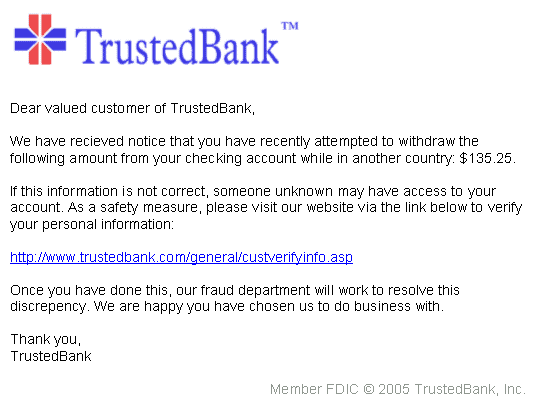
An example of a phishing email The internet is a very treacherous place where many sinister characters lurk looking for unwary and unsuspecting victims upon whom to unleash their mayhem. Many criminals and hackers create websites for the sole purpose of installing malware - viruses, trojans, worms, ransomware, spyware, etc - on the computers of visitors to such websites. Many websites are also set up for phishing purposes to steal personal, social and financial information from users. While staying away from suspicious-looking websites or refraining from clicking on suspicious links can help you avoid this scourge, many malware-containing websites these days look legitimate and may even be identical clones of websites that you trust. Other hackers/criminals upload their malware into unsuspecting and innocent sites usually through third-party applications or ads. However, there is one reliable way (amongst several other ways of course) to avoid many of the most ingenious of the...